Mastering OpenCode: A Terminal-First AI Coding Workflow

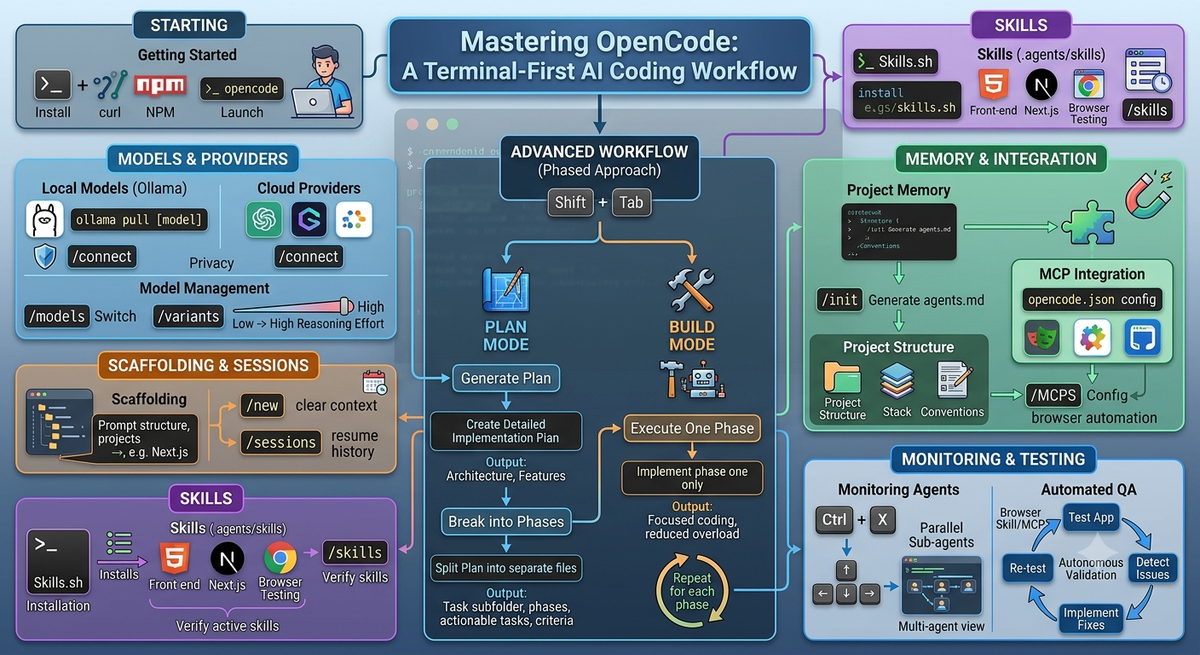
AI coding agents are evolving rapidly, but many developers are looking for solutions that offer more flexibility, transparency, and efficiency than proprietary alternatives. OpenCode has emerged as a compelling option: a fully open-source, terminal-first AI coding assistant that supports multiple model providers, local LLMs, and advanced agent workflows.
Unlike some coding agents that consume large numbers of tokens through extensive system prompts, OpenCode focuses on providing a lightweight yet powerful harness for AI-assisted development. This guide walks through everything you need to know to get started and build an effective workflow.
Getting Started: Installation and Setup
Installing OpenCode is straightforward. The project provides installation options through NPM as well as a simple curl-based installer available on its website.
Once installed, navigate to your project directory and launch OpenCode directly from the terminal:
opencode
This opens the interactive interface and prepares the agent to work within your current project.
Connecting Models and Providers
One of OpenCode's strengths is its flexibility. You can connect to both local and cloud-based AI models depending on your preferences, budget, and privacy requirements.
Using Local Models with Ollama
For developers who want complete local control:
- Install Ollama.
- Download a model:
ollama pull [model-name]
- Inside OpenCode, run:
/connect
- Select Ollama as your provider.
You can also launch OpenCode directly with a local model:
ollama launch opencode --model [model-name]
Using Cloud Providers
OpenCode also supports cloud-based services.
Run:
/connect
Then select a provider such as:
- OpenAI
- OpenCode Zen
- Other supported providers
OpenCode Zen can be particularly useful for experimenting with free models before committing to paid APIs.
Managing Models and Reasoning Levels
Switch between available models using:
/models
Adjust reasoning effort using:
/variants
For complex tasks, selecting a higher reasoning setting often produces better planning and implementation results.
Scaffolding New Projects
Once your model is connected, OpenCode can immediately begin creating project structures.
For example:
Please scaffold a Next.js project in this directory
The agent can generate the initial application setup and begin organizing files automatically.
Managing Sessions
When switching contexts or starting a new feature:
/new
This clears the current conversation context.
To revisit previous work:
/sessions
This allows you to resume earlier conversations and continue development where you left off.
Extending Capabilities with Skills
Skills are one of OpenCode's most powerful features. They provide specialized instruction sets that teach the agent how to perform specific tasks more effectively.
Skills are typically stored inside:
.agents/skills
Installing Skills
Many community-created skills are available through skills.sh.
Installation typically looks like:
npx skills-sh install [skill-name]
Popular skills include:
- Front-end design
- Next.js development
- Browser testing
- Framework-specific expertise
Verifying Active Skills
To view currently loaded skills:
/skills
This helps ensure the agent has access to the capabilities required for your project.
Advanced Workflow: Planning Before Building
One of the biggest mistakes when working with AI coding agents is attempting to build an entire application in a single prompt.
Large requests can overwhelm the model's context window and lead to inconsistent results. Instead, OpenCode encourages a phased approach.
Switching Between Planning and Building
Press:
Shift + Tab
to toggle between:
- Plan Mode
- Build Mode
Step 1: Generate an Implementation Plan
In Plan Mode, ask:
Please create a detailed implementation plan for [your app idea]
The agent will outline architecture, features, and implementation steps.
Step 2: Break the Plan into Phases
Next, create focused execution stages:
Please split this plan into separate files in a tasks subfolder. Each is a phase with detailed actionable tasks and acceptance criteria
This creates structured milestones that are easier for the agent to execute reliably.
Step 3: Build One Phase at a Time
Switch to Build Mode and focus on a single milestone:
Please implement phase one only
After reviewing results, continue with later phases individually.
This phased workflow dramatically improves output quality while reducing context overload.
Memory Files and MCP Integration
For long-term consistency, OpenCode supports project memory through an agents.md file.
Initializing Project Memory
Run:
/init
OpenCode will scan the codebase and generate an agents.md file containing:
- Project structure
- Technology stack
- Coding conventions
- Development guidelines
This helps the agent remain aligned with project requirements across sessions.
Adding MCP Servers
OpenCode supports the Model Context Protocol (MCP), allowing external tools to become available to the agent.
Configure MCP servers through:
opencode.json
A common example is integrating a Playwright MCP server, which gives the agent browser automation capabilities.
After configuration, verify connections using:
/MCPS
or:
/mcps
depending on your installation.
With browser access, the agent can navigate, test, and validate applications automatically.
Monitoring Agent Activity
OpenCode supports parallel task execution through sub-agents.
To inspect active agents:
Ctrl + X
Then use the arrow keys to cycle through running tasks.
This visibility is especially useful during larger implementations where multiple agents may be analyzing, coding, testing, or refactoring simultaneously.
Automated Testing and Bug Fixing
Combining browser skills with MCP integrations creates a powerful automated QA workflow.
For example, after implementing a feature, you can instruct the agent:
Please use the browser skill to test the app, create a new conversation, and fix any bugs
The agent can:
- Open the application
- Navigate through workflows
- Detect issues
- Implement fixes
- Re-test the changes
This creates a development loop that moves beyond simple code generation and into autonomous validation.
Final Thoughts
OpenCode offers a compelling terminal-first approach to AI-assisted software development. Its support for local models, multiple providers, skills, MCP integrations, and structured planning workflows makes it significantly more flexible than many proprietary alternatives.
The key to success is treating the agent as a collaborative developer rather than a one-shot code generator. By planning carefully, breaking work into phases, leveraging skills, and enabling automated testing, you can dramatically improve both output quality and development speed.
For developers who value openness, extensibility, and control, OpenCode is quickly becoming one of the most capable AI coding environments available today.